Anime Games
Documentation on how I play gacha slop anime games.
DWProton
- Install ProtonPlus from flathub
- Install DWProton Latest
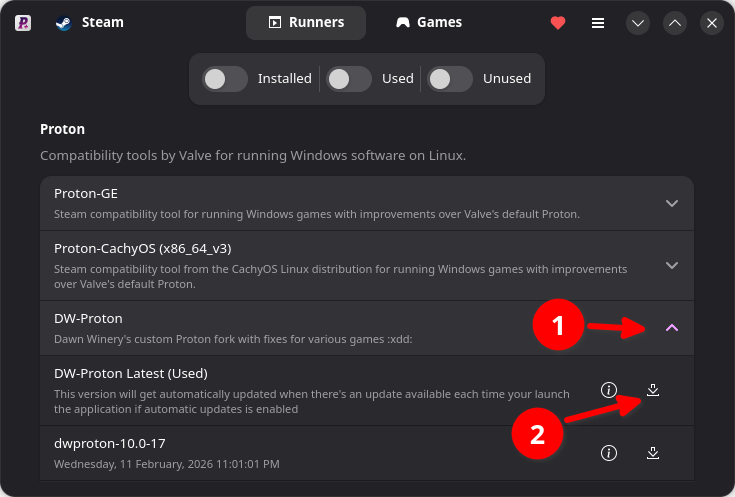
- Restart Steam
General Steam Instructions
Adding non-steam game
- Open Steam
Picture for reference:
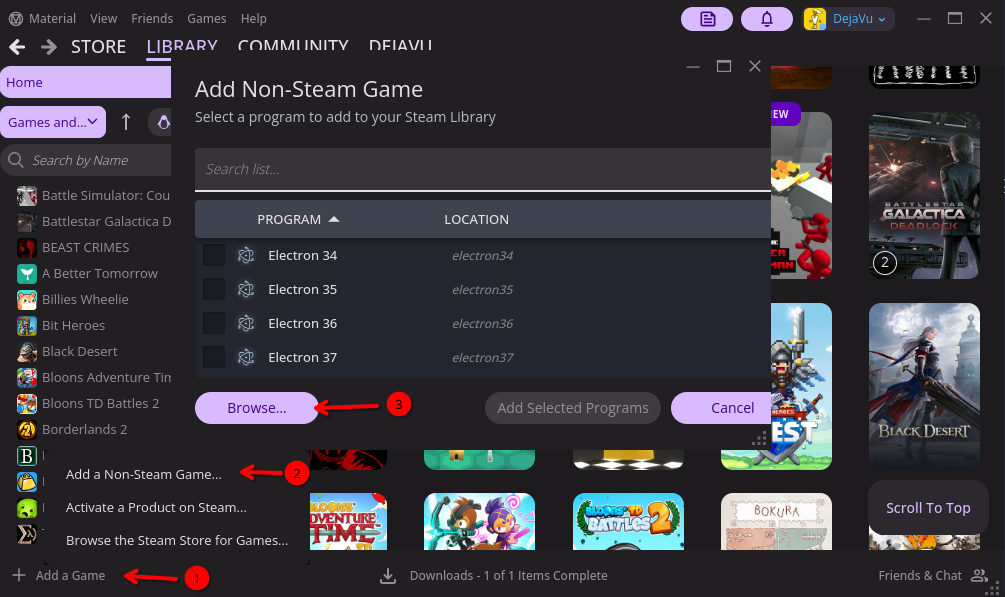
- In bottom left click "Add a Game", then click adding non-steam game
- In bottom left of the pop-up click browse
- Then navigate to exe of game (not the launcher)
- You can now see the game entry using the file name of the exe you selected
Setting Runner
- Open Steam
- Navigate to Game you want to set runner to
Picture for reference:
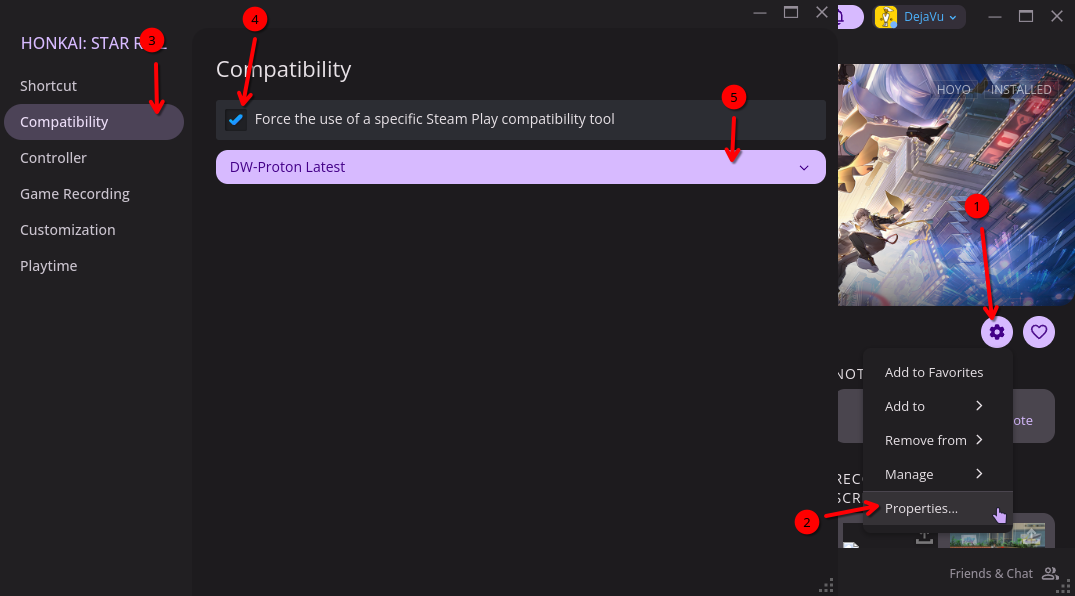
- See settings cog right side of steam UI
- Click on "Compatibility" on sidebar
- Enable "Force the use of a specific Steam Play compatibility tool"
- In dropdown, select DWProton (or any other runner)
Adding Media to non-steam games using SGDBoop
- Ensure the game you want to have media are already in your steam library (this both works for steam and non-steam entries)
- Install SGDBoop to your computer
- Visit SteamGridDB and search for the game you want to add media to
- Hover on the image you want to add to the game entry and click the "Apply with BOOP"
note
This can also be done manually without SGDBoop by downloading the image and going to the game properties and clicking the "Customization" in the sidebar and applying the image manually there.
Hoyoverse
HoYoPlay
- Install from here:
https://hoyoplay.hoyoverse.com/
- Install through Steam (add as non-steam game)
- Set the install path somewhere easy to navigate to
- Setting to default install path is also viable but not recommended as it would lead to searching for the prefix location which is not easily navigable
warning
Mouse cursor is currently bugged, offset by a little bit. Look for button highlighting instead of relying in cursor visual.
wine pop-ups like directory selection is not affected by this issue.
- Download and Install games
- Remember install path to be used when adding to steam
Genshin Impact and Zenless Zone Zero
- Locate installation path from hoyoplay
- Add as non-steam game
- Set runner to DWProton
Honkai: Star Rail
- Locate installation path from hoyoplay
- Add as non-steam game
- Download Jadeite
- In Steam TARGET set it to:
"/path/to/jadeite.exe" "/path/to/StarRail.exe"
Fix bug where game would blur after normal attacking
- Get protontricks through your distro's packagemanager
- You can also install through uv
- This can be done by
uv tool install protontricks- or use it temporarily by
(if done through this method adduvx protontricksuvxbeforeprotontricksin the terminal)
- You can also install through uv
- Use protontricks to determine game ID
protontricks --list
note
Example output in terminal:
protontricks --list
Non-Steam shortcut: Honkai: Star Rail (3251622364)
Where: 3251622364 is the Game ID
- Install mfc140, replace
gameidwith the output in protontricks
protontricks <gameid> mfc140
Arknights Endfield
- Download launcher at:
https://endfield.gryphline.com/en-us#home
- Install launcher through WINE/Bottles/Steam
- wine is simplest
- Download and Install game
- Add as non-steam game
- Game Path:
/path/to/GRYPHLINK/games/EndField Game/Endfield.exe - Set runner to DWProton
Wuthering Waves
- Download on steam
- Edit launch options to:
SteamOS=1 %command%
Optional launch options
- For FPS overlay and linux customization
- Requires install of mangohud and gamemode
- Add in launch option:
mangohud gamemoderun %command%
DWProton Launch args
- Add to launch options
%command%should be at the end, as these are environment variables- See Steam launch options entry in arch wiki for more info
Enable Async
PROTON_DXVK_GPLASYNC=1
Fix audio crackling
PROTON_USE_WINEALSA=1
Disable NTsync, fallsback to fsync
PROTON_NO_NTSYNC=1
Fix for games dropping inputs after alt-tab
WINE_USE_TAKE_FOCUS=1
Disable the disconnecting trick enabled by default for certain games
WINE_DISABLE_DISCONNECT=1
Enable the disconnecting trick for any game
WINE_ENABLE_DISCONNECT=1